Month: November 2015

Creating SQL Tables

Tables are the database structures where your data actually gets stored.

Now , we shall create a database table  ,you can write the create table below script to create  :

use mydatabase;       –assuming this is the name of your database

CREATE TABLE dbo.Student      — dbo is schema & student is table name
(
studentid INT NOT NULL,
firstname VARCHAR(20) NOT NULL,
lastname VARCHAR(20) NOT NULL,
admissiondate DATE NOT NULL,
phoneNumber VARCHAR(18) NOT NULL,
TeacherId INT NULL
);

 

Connecting to SQL -2 (Errors – Named Pipes)

Named PIPES:

Named Pipes Provider, error: 40 – Could not open a connection to SQL Server 

Users / developers often  come across this type of errors while connecting /opening  MS SQL Server.  Here is quick review of how to overcome this issue.

To connect to MS SQL Server , we need network protocols , which connect  and communicate with SQL. There are normally four Network Protocols  to communicate to MS SQL .

  • Shared Memory
  • Named Pipes
  • TCP/IP
  • VIA

To overcome the above error of Named Pipes , Follow the instructions below :

  • Go to Start Menu of your windows, open the Microsoft SQL Server tab , find the SQL Server Configuration Manager .
  • Go to the protocols of SQL Server in the SQL Server Configuration Manager And enable the Name Pipes on the right window .Find the below Screen Clipping for reference :
  • Named Pipes 1

Connecting to SQL

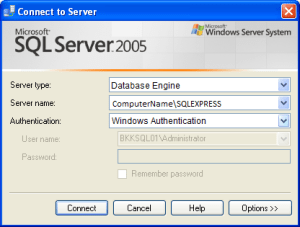
People face many connectivity issues while connecting to different SQL versions (MS SQL 2005,2008,2012). We shall be providing quick review of how to connect to different Versions on your local machine.

1-  Connecting SQL 2005 :

sqlconnect1

ServerName:  is Your computerName which can be found from your My Computer /This PC ‘s and \SQLEXPRESS .

2-  Connecting SQL 2008 :

sql2png

ServerName:  is Your computerName which can be found from your My Computer /This PC ‘s and \SQLEXPRESS .

3-  Connecting SQL 2012 :

sql3

ServerName:  is Just Your ComputerName