
SSAS works best with database schemas that are designed to support data analytics and reporting needs. You achieve such schemas by reducing the number of tables available for reporting, denormalizing data, and simplifying the database schema. The methodology you use to architect such schemas is called dimensional modeling.
After the dimensional schema is in place, you can build the Unified Dimensional Model
(UDM), also known as an SSAS cube, on top of it. The cube is a logical storage object that combines dimensions and measures to provide a multidimensional view of data .
The UDM consists of several components, as follows:
Data source Represents a connection to the database where the data is stored. SSAS uses the data source to retrieve data and load the UDM objects when you process them.
Data source view (DSV ) : It is just like views. Abstracts the underlying database schema. Although a DSV might seem redundant, it can be very useful by letting you augment the schema. For example, you can add calculated columns to a DSV when security policies prevent you from changing the database schema .
A data source view consists of a set of one or more logical tables with each table representing a saved SQL select statement. This feature has a number of advantages. It allows you to add or modify the underlying database design to fit your current needs without breaking the cubes. If the underlying database changes, modify the data source view to present the database as it was before the change. Additionally, if the data warehouse is not designed the way you would like it to be, you can modify the data source view to mimic your ideal data warehouse design.
Dimensional model :After you’ve created a DSV, the next step is to build the cube
dimensional model. The result of this process is the cube definition, consisting of measures and dimensions with attribute and/or multilevel hierarchies.
Named Queries : Each data source view table is a select statement. You can modify these select statements and join data to them from more than one SQL Server table. In our example, the Titles dimension includes both the DimTitles and DimPublishers tables in a snowflake pattern .
Named Calculation : As its name suggests, a named calculation is a column based on an expression.Named calculations allow you to modify a portion of the underlying SQL statement that is used by a data source view. A named calculation is similar to a named query, except that you add only a SQL expression to an existing statement, rather than using a whole SQL statement.


Dimensions
The Attributes :
KeyColumns : A collection of one or more columns uniquely identifying one row from
another in the dimension table (for example, 1, 2, or 3).
Name :The logical name of an attribute.
NameColumn: The values that are displayed in the client application when a particular
attribute is selected (for example, Red, Green, or Blue).
Type : The type of data the attribute represents (for example, day, month, or year) .
The Hierarchies Pane :
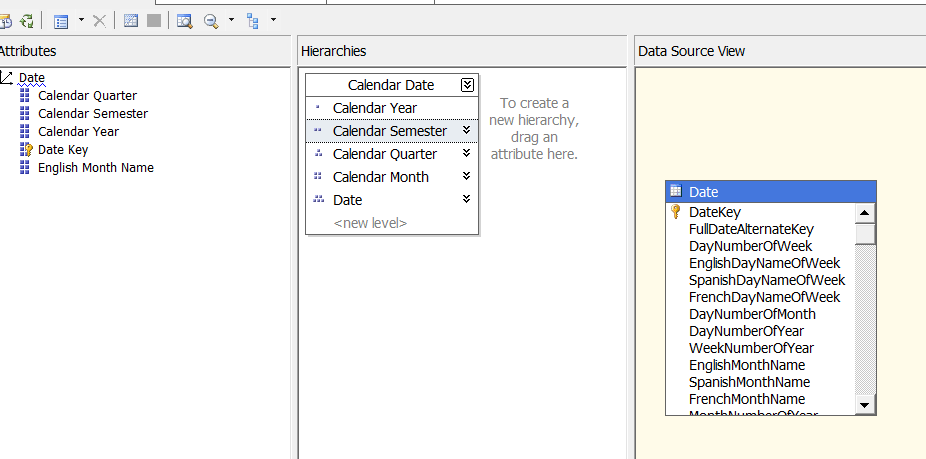
When you first create a dimension, each attribute is independent of each other, but user hierarchies allow you to group attributes into one or more parent-child relationships. Each relationship forms a new level of the hierarchy and provides reporting software with a way to browse data as a collection of levels-based attributes .
Cubes:
After the cube has been created, the cube needs to be configured and validated. Configuring a cube means modifying the cube to fit your needs, whereas validating a cube means verifying that the cube’s configuration is viable.
Cube Structure : Sets the properties for measures and measure groups
Dimension Usage: Maps connections between each dimension and measure group
Calculations :Adds additional MDX calculations to your cube
KPIs: Adds key performance indicator measures to your cube
Actions :Adds additional actions such as drill through and hyperlinks
Partitions :Divides measures and dimensions for fine-tuning aggregations to be stored
on the hard drive.
Aggregations :Finds which aggregations should be stored on the hard drive
Perspectives Defines SQL view–like structures for your cube.
Translations : Adds additional natural languages to the captions of your cube
Browser Browses the cube from the development environment .
Calculated members :
The Calculations tab enables you to create named MDX expressions, also known as calculated members . Typically these calculated members are used to create additional measures, but they can also be used to create additional dimensional attributes.
An example of an additional measure is acquiring the total price of an individual sale by multiplying the quantity by the price of the product. An additional dimensional member example is combining countries into groups such as combining Mexico, Canada, and the United States into one member called North America.
By default, all new calculated members are created on the Measures dimension. Calculated members in the Measures dimension go by a special name, known as calculated measures.

Calculated Members vs. Derived Members
Calculated members use MDX expressions to create new members to the measures or other dimensions.
Derived members use SQL expressions to create new members on the measures or other dimensions. Derived members are created in SSAS by modifying the SQL code behind each table in a data source view. This can be somewhat confusing, so let’s review the difference between calculated members and derived members.
Listing 11-3. SQL Code for a Derived Measure
SELECT
FactSales.OrderNumber
, FactSales.OrderDateKey
, FactSales.TitleKey
, FactSales.StoreKey
, FactSales.SalesQuantity
— Adding derived measures
, DimTitles.TitlePrice as [CurrentStdPrice]
, (DimTitles.TitlePrice * FactSales.SalesQuantity) as DerivedTotalPrice
FROM FactSales
INNER JOIN DimTitles
ON FactSales.TitleKey = DimTitles.TitleKey
KPIs :A key performance indicator (KPI) is a way of grouping measures together into five basic categories. The five basic categories start at -1 and proceed to a +1 using an increment of ( -1, -0.50, 0, +0.50, and +1). The numbering system may seem odd to some, but it has to do with the science of statistics. Because of this, SSAS uses only these five categories, and they cannot be redefined.
The idea behind a KPI is for you to reduce the number of individual values in a tabular report to the essence of those values. This is convenient when you have a large report and what you really want to see is whether something has achieved a predefined target value, exceeded it, or did not make it to that value.
KPIs can be created in programming code such as SQL, C#, or MDX. In Listing 11-4 , you can see an example of an MDX statement that defines a range of values and categorizes each value within that range as either -1, 0, or 1. To keep things simple, we excluded the .05 and -05 categories and will work with just these three categories for now.
Listing 11-4. MDX Statement That Groups Values into Three KPI Categories
WITH MEMBER [MyKPI]
AS
case
when [SalesQuantity] < 25 or null then -1
when [SalesQuantity] > = 25 and [SalesQuantity] < = 50 then 0
when [SalesQuantity] > 50 then 1
end
SELECT
{ [Measures].[SalesQuantity], [Measures].[MyKPI] } on 0,
{ [DimTitles].[Title].members } on 1
From[CubeDWPubsSales]

The number 493 is greater than 25 to 50; therefore, the status indicator is an upward-pointing arrow .
Often KPIs have the following five commonly used properties:
Name: Indicates the name of the Key Performance Indicator.
Actual/Value: Indicates the actual value of a measure pre-defined to align with organizational goals.
Target/Goal: Indicates the target value (i.e. goal) of a measure pre-defined to align with organizational goals.
Status: It is a numeric value and indicates the status of the KPI like performance is better than expected, performance is as expected, performance is not as expected, performance is much lower than expected, etc.
Trend: It is a numeric value and indicates the KPIs trend like performance is constant over a period of time, performance is improving over a period of time, performance is degrading over a period of time, etc.
Apart from the above listed properties, most of the times, KPIs contain the following two optional properties: Status Indicator: It is a graphical Indicator used to visually display the status of a KPI. Usually colors like red, yellow, and green are used or even other graphics like smiley or unhappy faces. Trend Indicator: It is a graphical indicator used to visually display the trend of a KPI. Usually up arrow, right arrow, and down arrow are used.
Partitions :
The Partitions tab allows you to create and configure cube partitions. Partitions are a way of dividing a cube into one or more folders. These folders are usually placed on one or more hard drives and independently configured for increased performance.
Partition Storage Designs
In this dialog window you can choose how data is stored for a particular partition. Partition data falls into three categories of data: leaf level (individual values), aggregated total and subtotal values, and metadata that describes the partition.
Data storage designs also fall into three categories: MOLAP, HOLAP, and ROLAP (Figure 12-16). Storage locations, however, fall into two categories: an SSAS database folder or tables in a relational database.

There are primarily two types of data in SSAS: summary and detail data. Based on the approach used to store each of these two types of data, there are three standard storage modes supported by partitions:
ROLAP: ROLAP stands for Real Time Online Analytical Processing. In this storage mode, summary data is stored in the relational data warehouse and detail data is stored in the relational database. This storage mode offers low latency, but it requires large storage space as well as slower processing and query response times.
MOLAP: MOLAP stands for Multidimensional Online Analytical Processing. In this storage mode, both summary and detail data is stored on the OLAP server (multidimensional storage). This storage mode offers faster query response and processing times, but offers a high latency and requires average amount of storage space. This storage mode leads to duplication of data as the detail data is present in both the relational as well as the multidimensional storage.
HOLAP: HOLAP stands for Hybrid Online Analytical Processing. This storage mode is a combination of ROLAP and MOLAP storage modes. In this storage mode, summary data is stored in OLAP server (Multidimensional storage) and detail data is stored in the relational data warehouse. This storage mode offers optimal storage space, query response time, latency and fast processing times.
Perspectives :
Perspectives are a named selection of cubes, dimensions, and measures. These are similar to a SQL view in that they allow you to filter what can and cannot be seen by the perspective. By default, whenever you create a cube, users can see every dimension and measure within that cube. If the cube has a lot of measures and dimensions, this can be confusing for your cube report builders. You could make several cubes in the same database, but perspectives allow you to select a subset of cubes, dimensions, and measures.
Translations:
Translations are very useful in achieving higher level of adoption of the BI/Analytics system (SSAS). This will eliminate the language barriers among users from different locations/languages and presents the same information in different languages making single version of truth available to users across different geographical locations.
Role Playing Dimensions:
A Role-Playing Dimension is a Dimension which is connected to the same Fact Table multiple times using different Foreign Keys. This helps the users to visualize the same cube data in different contexts/angles to get a better understanding and make better decisions.
Reference Dimensions :
Reference dimensions allow you to create a dimension that is indirectly linked to a fact table. To accomplish this, you must identify an intermediate dimension table. As an example, we use the DimCategories table, which is indirectly connected to the FactOrders table through the DimProducts table.


 SqlBird